ID TECH
You can use Payroc Cloud to send instructions from your POS to an ID TECH payment device that doesn’t use an Android operating system. Your POS manages the checkout experience, while your ID TECH device captures the payment details.
To enable communication between your POS, your payment device, and our gateway, you need to download the Payroc Cloud middleware. The middleware runs on a host machine with a Windows or Linux operating system, and it connects to only one payment device at a time by USB.
How it works
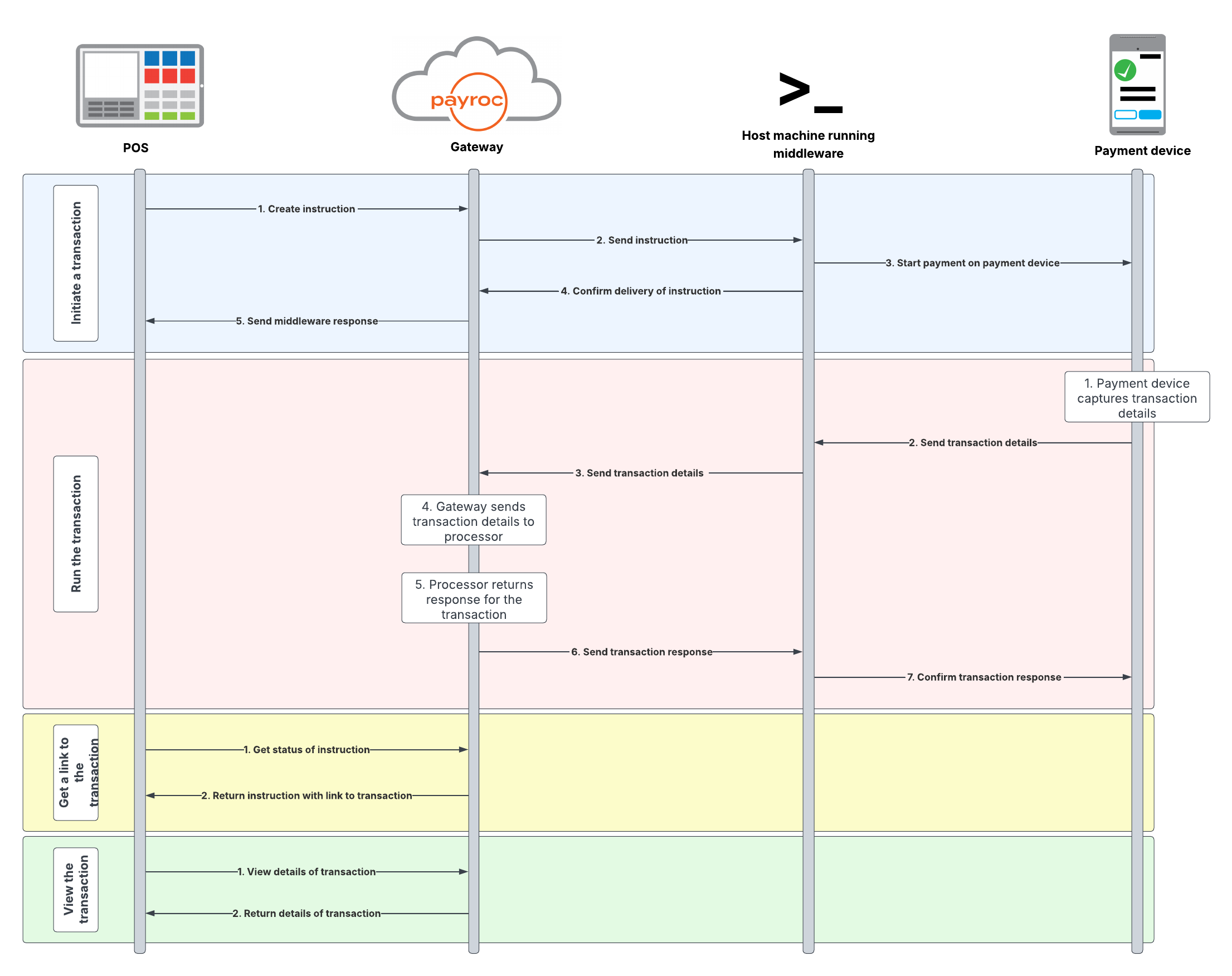
Initiate a transaction
- Your POS sends an instruction to our gateway.
- Our gateway sends the instruction to the middleware.
- The middleware starts the payment on your payment device.
- The middleware confirms it received the instruction by sending a response to our gateway.
- Our gateway returns an identifier to your POS for the payment instruction.
Run the transaction
- Your payment device captures the transaction details.
- Your payment device sends the transaction details to the middleware.
- The middleware sends the transaction details to our gateway.
- Our gateway sends the transaction details to the processor.
- The processor returns a response to our gateway.
- Our gateway returns a response to the middleware.
- The middleware sends the response to your payment device.
Get a link to the transaction
- Your POS sends a request to our gateway to check the status of the instruction.
- Our gateway sends the response to the POS that contains a HATEOAS link to view the transaction.
View the transaction
- Your POS sends a request to our gateway to view the details of the transaction.
- Our gateway sends a response to your POS that contains the details about the transaction.
Integration steps
To configure Payroc Cloud on an ID TECH device, complete the following steps:
Step 1. Prepare your host machine for configuration.
Step 2. Configure native libraries.
Step 3. Configure the payconfig.xml file.
Step 4. Run the middleware.
We have two guides to help you configure your ID TECH device, depending on the operating system that you use:
- Configure an ID TECH device for a Windows host machine
- Configure an ID TECH device for a Linux host machine.
After you configure your device, program your POS to submit sale instructions to the device. For more information about how to submit sale instructions, go to Run a sale.

