Android (POS on the same device)
Android (POS on the same device)
Use our Android (POS on same device) configuration to run your POS app and our Payroc App on the same payment device. Your POS app manages the checkout experience, while our Payroc App securely processes the payment on the device.
Because both apps run on one device, your integration must manage how they interact. This includes preparing the Payroc App to receive payment instructions and switching between the two apps when a transaction is in progress.
How it works
The following diagram describes the flow of a transaction between your POS app, our gateway, and the Payroc App.
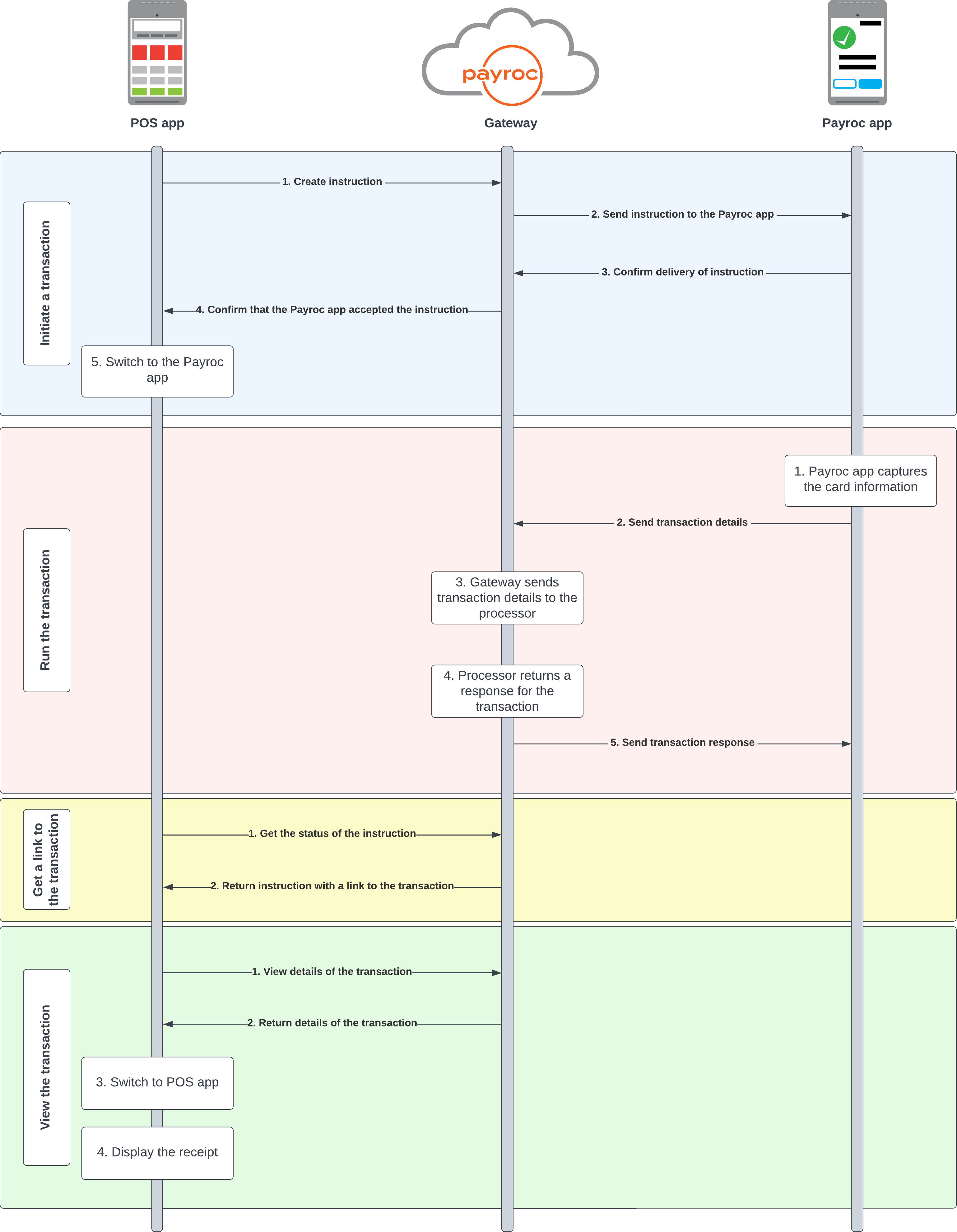
Initiate a transaction
- Your POS App sends an instruction to our gateway.
- Our gateway passes the instruction to the Payroc App.
- The Payroc App confirms that it has received the instruction.
- Our gateway sends a response to your POS app that contains an identifier for the instruction.
- You switch from your POS app to the Payroc App.
Run the transaction
- The Payroc App captures the card details.
- The Payroc App sends the transaction details to our gateway.
- Our gateway sends the transaction details to the processor.
- The processor sends a response to our gateway.
- Our gateway sends the response to the Payroc App.
Get a link to the transaction
- Your POS App sends a request to our gateway to check the status of the instruction.
- Our gateway sends the response to your POS app that contains a HATEOAS link to view the transaction.
View the transaction
- Your POS App sends a request to our gateway to view the details of the transaction.
- Our gateway sends a response to your POS App that contains details about the transaction.
- You switch from the Payroc App to your POS App.
- Your POS App displays the receipt.
Integration journey
- Configure the payment device.
- Use our API to send sale instructions to the payment device.
- Test your integration with our Payroc Cloud Simulator.
Configure the payment device
In this configuration, your POS App and the Payroc App are installed on the same Android payment device. To ensure that both Apps work together correctly, you must configure the device and your POS App to support background services and App switching.
Integration steps
- Adjust the permissions on the payment device.
- Update the Payroc App.
- Configure your activity to run a single task.
- (Optional) Set the Payroc App to start first.
- Handle App switching.
- Upload your POS App to the Paxstore.
Step 1. Adjust the permissions on the payment device
Note: This step applies only to Android 10 devices.
To switch back to your POS App from the Payroc App, you need to request the overlay permission at runtime.
To request the overlay permission, adjust the following permission in your Android manifest:
Example code
Step 2. Update the Payroc App
To confirm that your Payroc App is up to date, open the Payroc App from the home screen. After you open the Payroc App, it downloads the latest version and settings.
Note: The Payroc App doesn’t display the navigation bar. To view the navigation bar, tap the Payroc logo three times.
Step 3. Configure your activity to run a single task
To return to the same activity instance when you switch back to your POS App, configure the launch mode to singleTask, and then add the following code to your Android manifest:
Step 4. (Optional) Set the Payroc App to start first
If you want to start your POS App when the device turns on, you need to make sure that the Payroc App starts first.
To set the Payroc App to start first, set the priority of the intent filter in the boot receiver to 0.
Step 5. Handle App switching
Before you can run transactions, you need to:
- Start the Payroc App service.
- Handle switching from your POS App to the Payroc App.
- Handle switching from the Payroc App to your POS App.
Start the Payroc App service
Before you send instructions to the Payroc App, run a command to start the Payroc App service on the payment device. If you start this service first, the Payroc App runs in the background before you send it instructions.
To start the Payroc App service, use the following package name:
Example code
Switch from your POS App to the Payroc App
After you receive a response for a payment instruction with a status of inProgress, switch to the Payroc App on the payment device.
Switch from the Payroc App to your POS App
After your POS App receives the details of a transaction or the transaction is canceled, switch back to your POS App.
Step 6. Upload your POS App to the Paxstore
After you create your POS app, upload it to the Paxstore. We recommend that you become a sub-reseller on the Payroc marketplace on the Paxstore. For more information about how to set up your sub-reseller account and upload your app, contact your integration specialist.
Next steps
Now that you have configured your payment device, program your POS app to submit sale instructions. For more information about how to submit sale instructions, go to Run a sale.

